FEATURE GUIDE 01
Alarms & Voice Readout
What it does
A Smastar alarm doesn't just make noise. After the alarm tone, it speaks: the time, the weather, today's calendar events, your habits, and the purpose you set for the day. Instead of slapping snooze and drifting back to sleep, you wake by hearing what time it is, what the sky looks like, and what today is for.
Alarms fire even in Silent Mode and Focus modes. Smastar uses Apple's official AlarmKit framework — the same reliability as the built-in Clock app.
How to use it
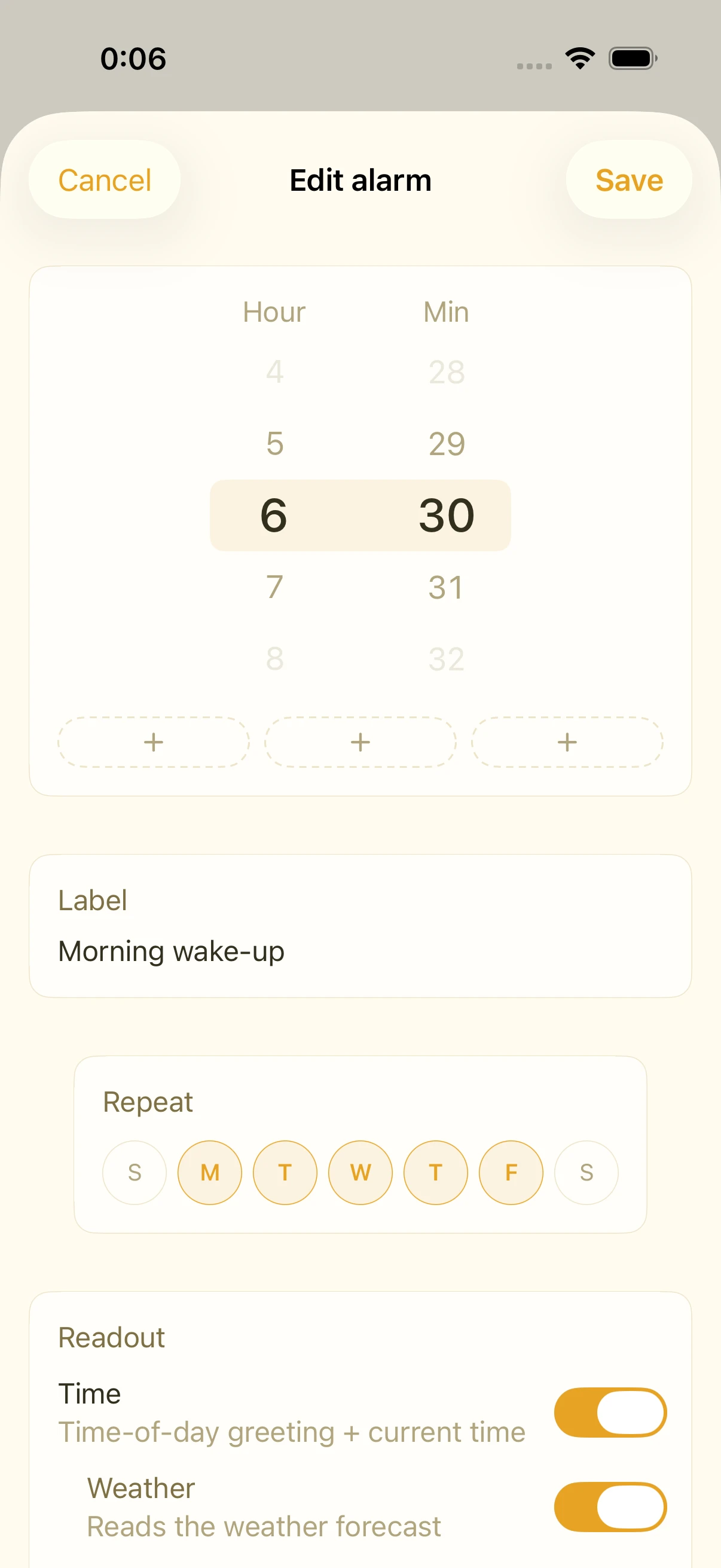
- In the Wake-up tab, tap "+" and set the time and weekdays
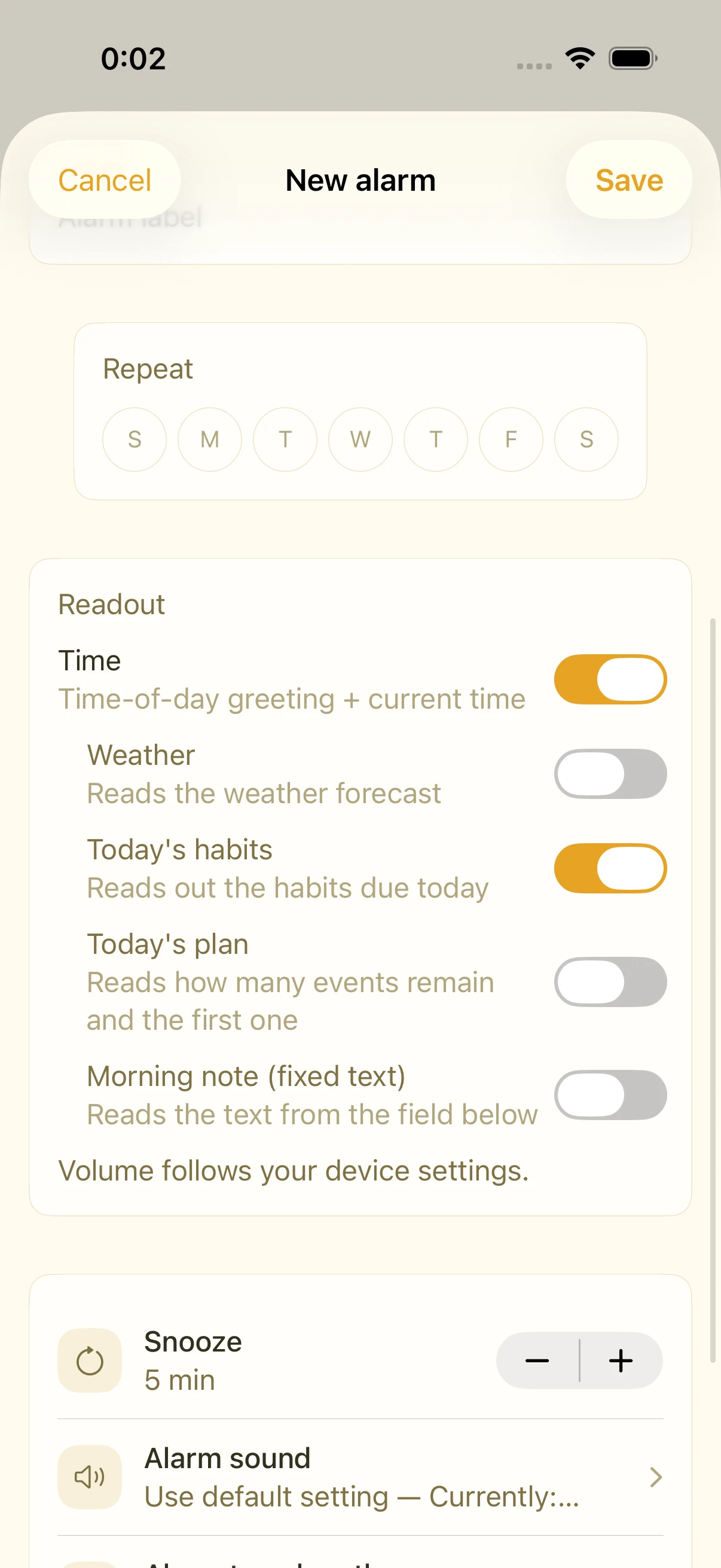
- Choose what gets read aloud: time, weather, calendar events, habits, and a custom line — in any combination
- When the alarm fires, your alarm tone plays first, then the voice readout
- The readout loops until you stop it, with a 2-second pause between loops so it stays clear without becoming grating
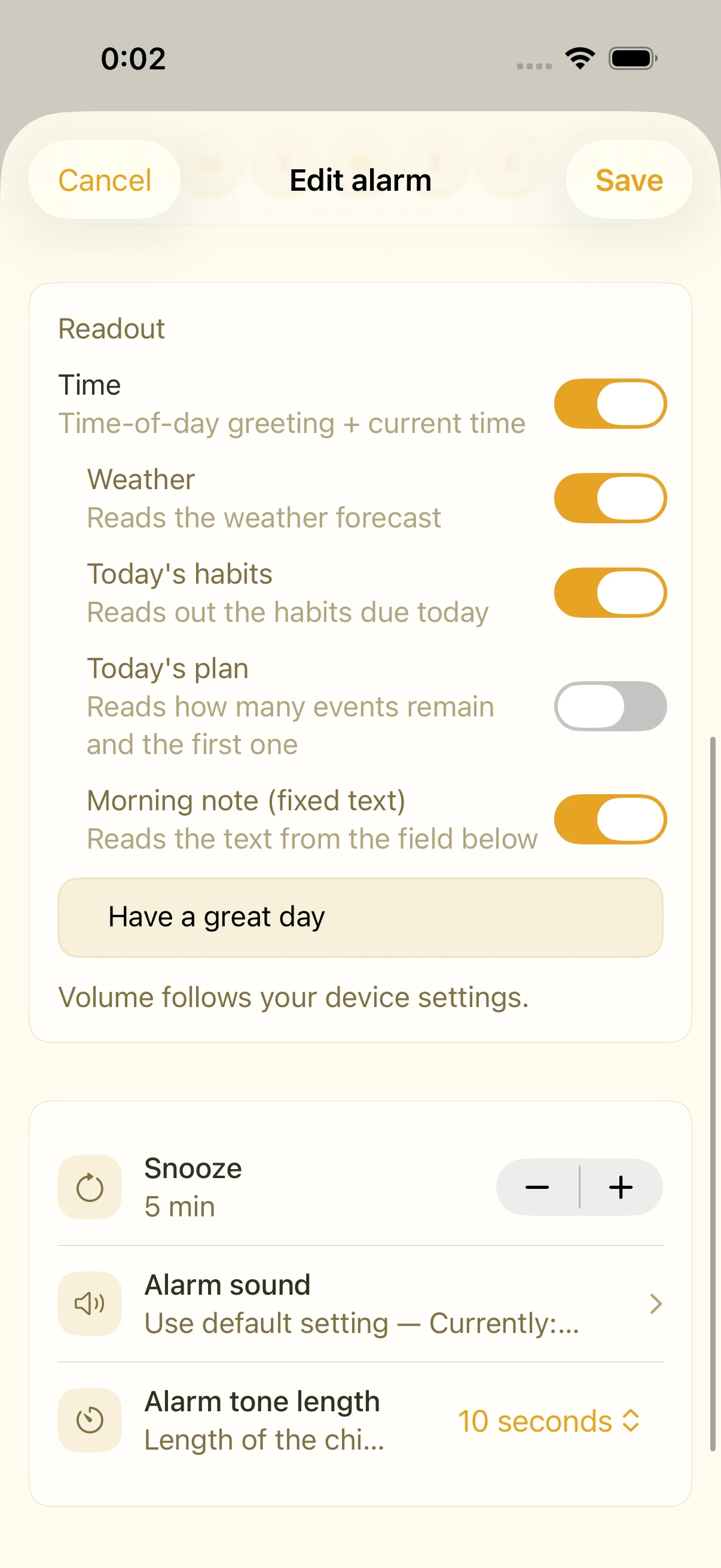
The custom line (today's purpose)
Add a line like "Gym day" or "Catch the 7:00 train" and you'll hear it every morning. Hearing your purpose before your feet hit the floor makes "five more minutes" a lot less tempting.
Weather readout
Weather comes from Apple's WeatherKit and is fetched ahead of time, when your alarm is set — so the readout works even if your morning signal is poor.
FAQ
Does it ring in Silent Mode?
Yes. Focus modes too. Because Smastar uses AlarmKit, it behaves like the built-in Clock app's alarms.
Can I have vibration only?
Yes — choose "silent" as the alarm sound. Vibration always fires with the alarm regardless of sound (iOS doesn't allow turning haptics off independently).
The readout is too fast / too slow
Adjust the speech rate in Settings › Voice. You can also set a delay between the tone and the readout.
Related settings
- Settings › Alarm sound: default tone and tone length (0–10 s)
- Settings › Voice: voice selection, preview, speech rate
- Each alarm's edit screen: readout components, per-alarm sound override