FEATURE GUIDE 03
Choosing & Downloading Voices
What it does
It's the first voice you hear each day, so it should be one you like. Smastar reads aloud using the voices built into iOS (the same speech engine behind Siri), and you can choose a voice, preview it, and add higher-quality, more natural voices.
Choosing a voice
- Open Settings › Voice
- Tap Preview to hear a sample in the current voice
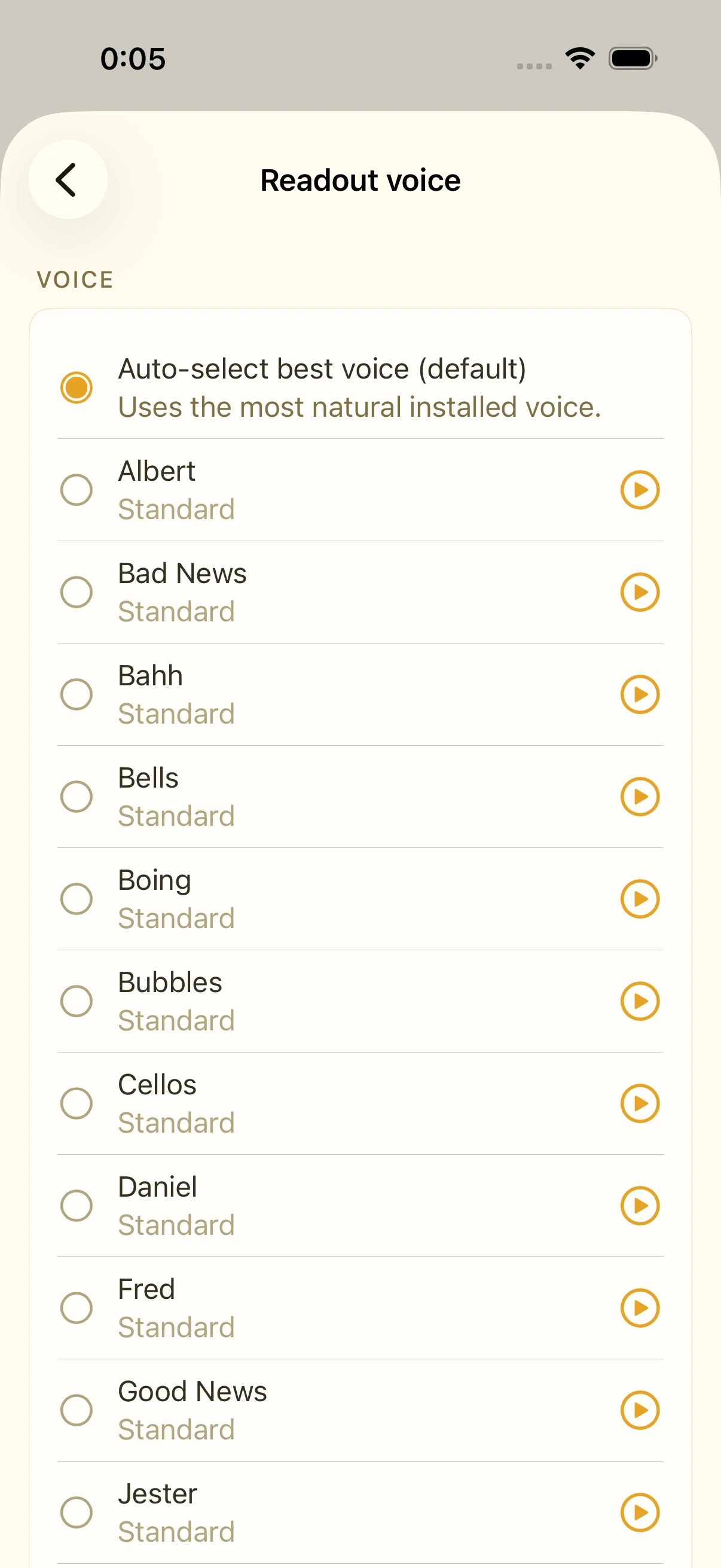
- Tap Choose a voice to see every voice available on your device
- Each voice carries a quality badge:
- Premium — the most natural, highest quality
- Enhanced — noticeably more natural than standard
- Standard — the voices pre-installed on every device
- Tap a voice to preview and select it
Leave it on "Auto" and Smastar follows your device's language settings.
Adding more natural voices (download)
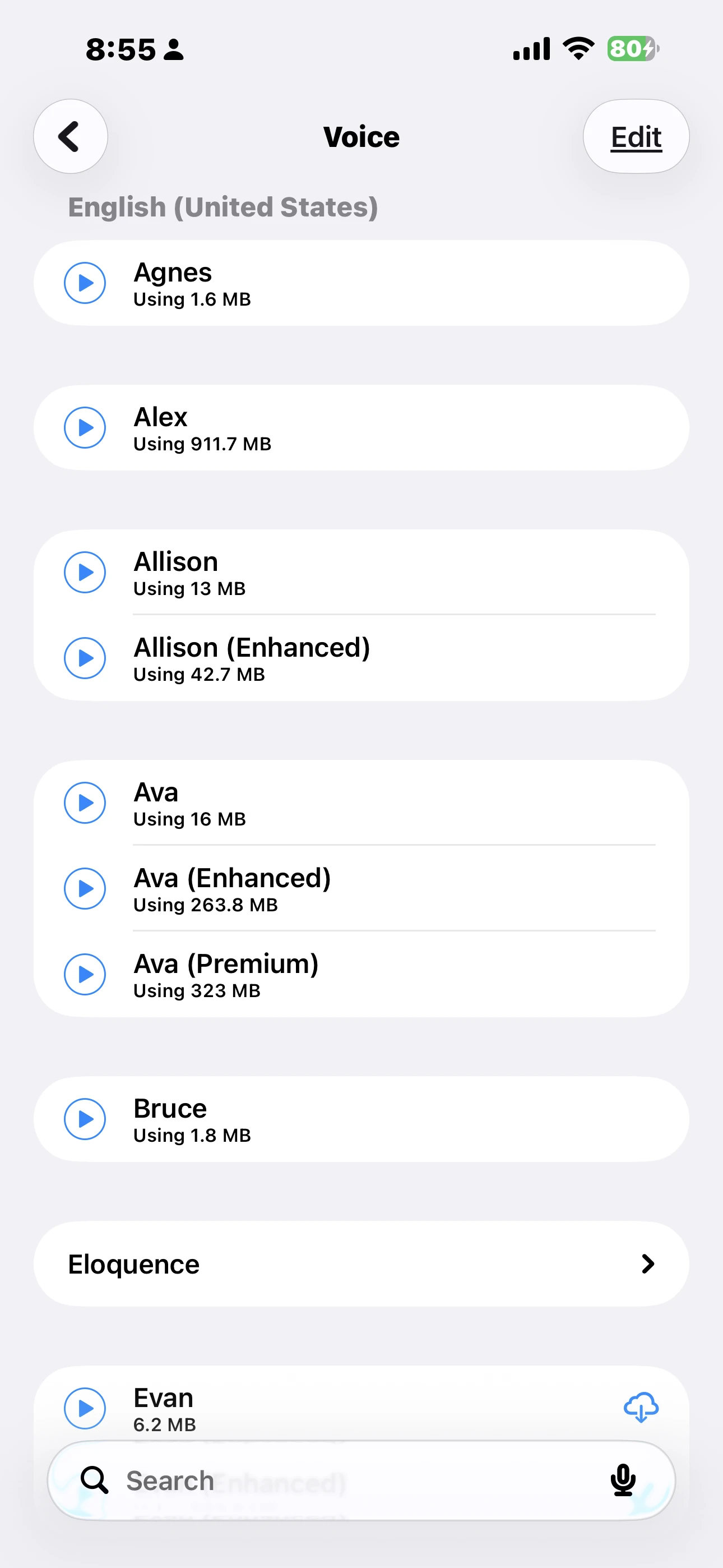
Premium and Enhanced voices aren't always pre-installed. Download them in the iOS Settings app, and they appear in Smastar's voice list automatically:
- Open the iOS Settings app
- Go to Accessibility › Spoken Content › Voices
- Choose your language
- Tap the download button (cloud icon) next to a voice you like
- Once downloaded, reopen Smastar's Settings › Voice › Choose a voice — the new voice appears with its quality badge
Premium voices are large (hundreds of MB), so Wi-Fi is recommended.
The small details
Times and weather run through a custom pronunciation dictionary, so phrases like "7 AM" and "partly cloudy, then rain" read naturally instead of robotically.
FAQ
My downloaded voice isn't showing up
Check in iOS Settings that the download finished. If it has, reopening Smastar's voice picker will show it.
Are downloaded voices free?
Yes. They're provided by Apple at no cost.
Related settings
- Settings › Voice: preview, voice selection, speech rate, delay
- iOS Settings › Accessibility › Spoken Content › Voices: high-quality voice downloads