FEATURE GUIDE 05
Daytime — To-Dos & Event Pre-Alarms
What it does
Smastar isn't only for mornings. The Daytime tab manages your to-dos and lets you set "N minutes before" pre-alarms on your calendar events.
Event pre-alarms
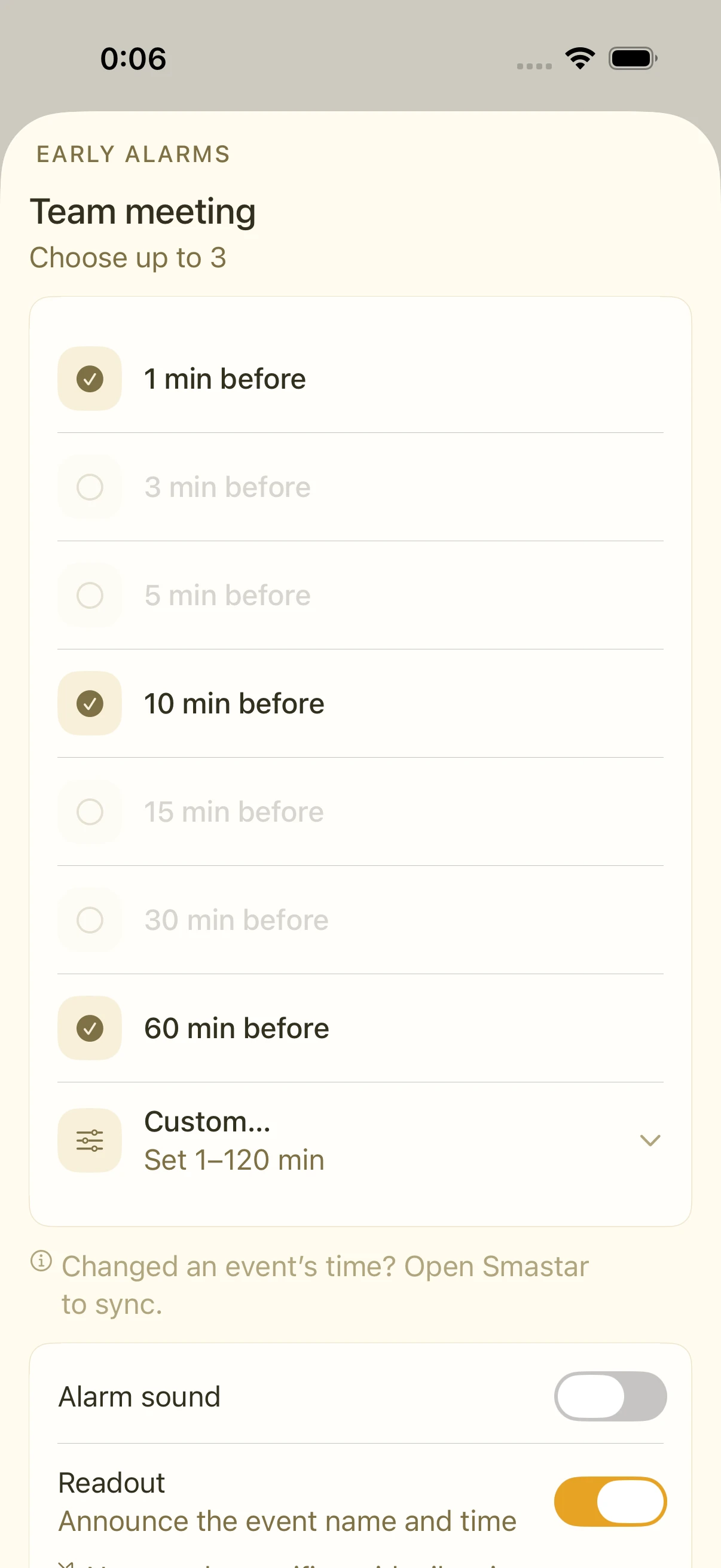
For events on your iOS calendar (Apple, Google, and Outlook accounts added to iOS), you can set multiple alerts before the start time:
- Tap an event in the Daytime tab
- Select multiple lead times: 1 / 3 / 5 / 10 / 15 / 30 / 60 minutes before, or a custom value (1–120 minutes)
- Event pre-alarms let you toggle the alarm tone and the voice readout independently — for example, no tone, voice only
A two-stage setup like "once at 60 minutes, again at 10" works well: early for events you travel to, last-minute for meetings down the hall.
To-dos and checklists
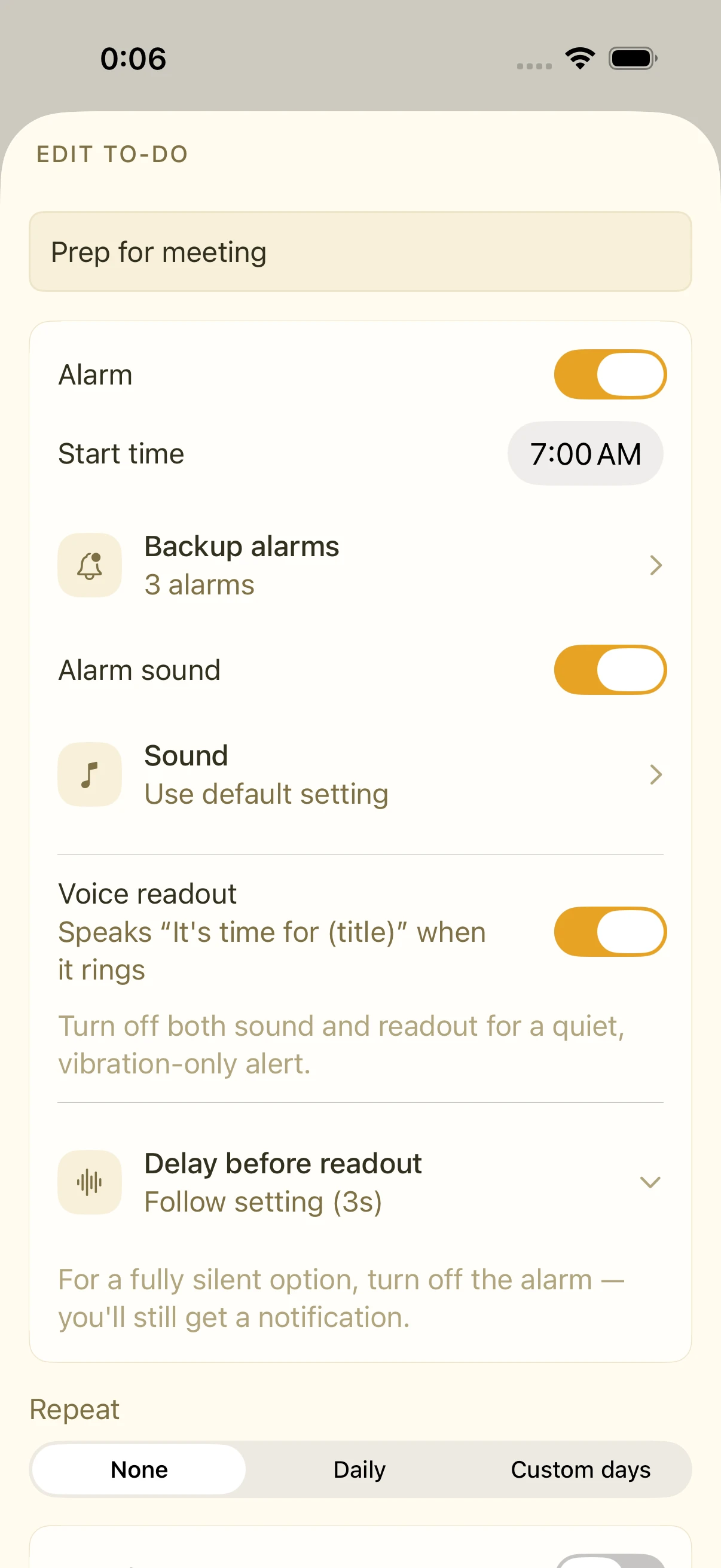
- Add a to-do in the Daytime tab
- To-dos support checklists (sub-items) — "Groceries" containing "milk", "eggs", and so on
- To-dos can also carry multiple backup alarms (N minutes before)
FAQ
Do Google Calendar / Outlook events show up?
Yes, if the account is added in iOS Settings › Calendar › Accounts. Smastar reads events through the iOS calendar system (EventKit), so events won't appear if you only use the Google/Outlook apps without adding the account to iOS.
Do pre-alarms ring in Silent Mode?
Event and to-do pre-alarms use the same mechanism as morning alarms. Lead times that have already passed (picking "10 minutes before" with 5 minutes to go) can't be selected.
Related settings
- Settings › Calendar: which calendars are shown and read aloud
- Each event/to-do edit screen: pre-alarm times, tone, and readout